Is an Online Ruler Accurate? How to Calibrate It
Why on-screen rulers show the wrong size until they are calibrated, the three ways to calibrate and how accurate each one is, device-by-device tips, and simple ways to check the result with a coin or card.
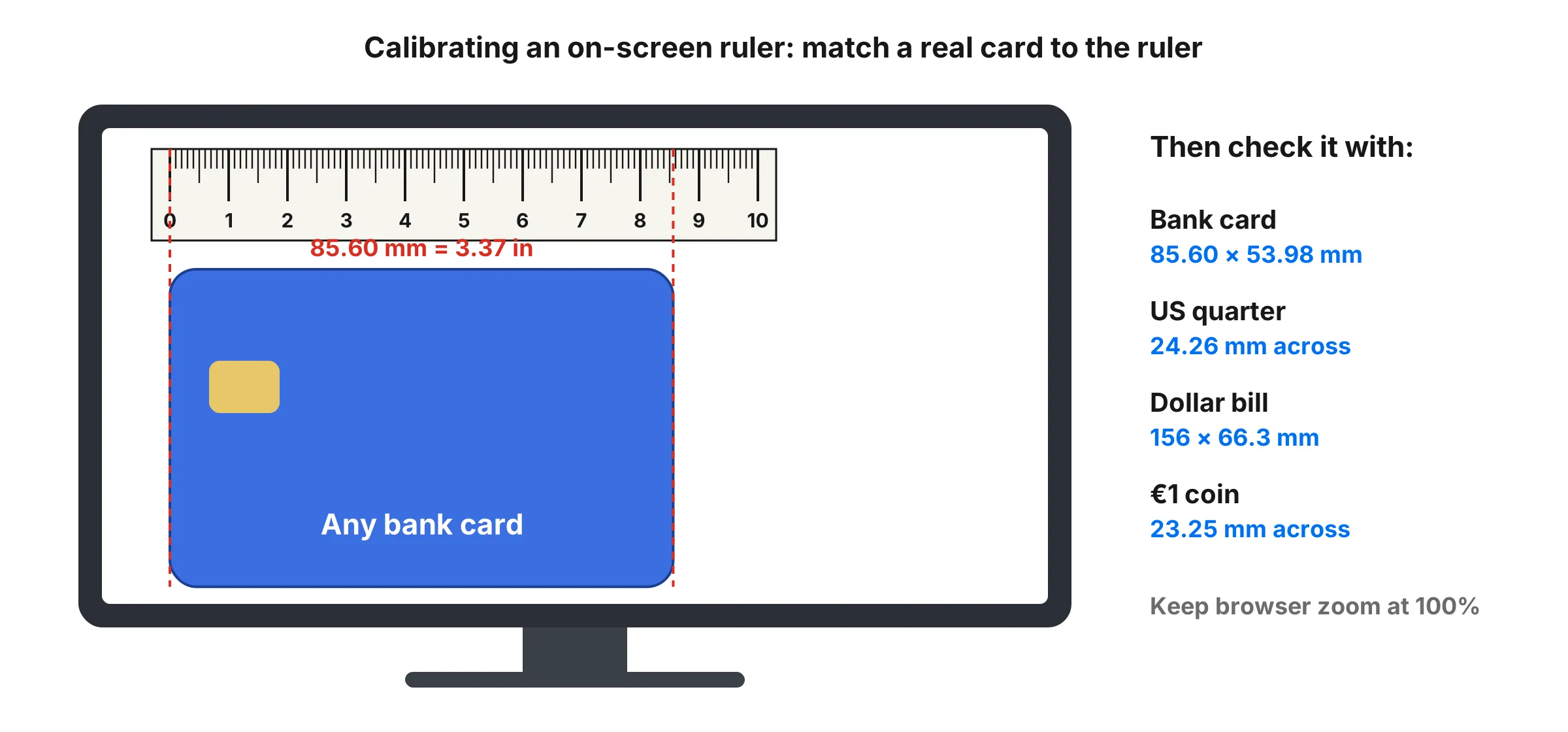
An online ruler can be as accurate as a plastic one, but only once it knows the size of your screen. If you’ve ever opened an online ruler and found that a coin looked too big or too small, the ruler wasn’t broken. It just hadn’t been calibrated yet.
This guide explains why that happens, how to fix it in under a minute, and how to tell whether your ruler is actually right.
Quick answer: Online rulers are accurate only after calibration. Hold a bank card against the screen, match the on-screen outline to it, and the ruler will be within about ±0.5%, or roughly half a millimeter over 10 cm. Without calibration, it can be 5–40% off depending on your screen.
Why online rulers are wrong until calibrated
To draw one real inch, a ruler needs to know how many pixels fit into one inch on your screen. That number is your screen’s pixel density, measured in pixels per inch (PPI).
Browsers don’t report it. Web pages are laid out in “CSS pixels”, and the CSS standard simply defines one inch as 96 of them. Real screens almost never match that. Their density depends on the size and resolution of the screen, and on the display scaling setting in Windows, macOS, iOS or Android.
Here’s what an uncalibrated “1 inch” actually measures on a few common screens:
| Screen | Real pixel density | “1 inch” really measures | Error |
|---|---|---|---|
| 24-inch 1080p monitor, 100% scaling | 92 PPI | 1.05 in | 5% too big |
| 27-inch 4K monitor, 150% scaling | 163 PPI | 0.88 in | 12% too small |
| 15.6-inch 1080p laptop, 125% scaling | 141 PPI | 0.85 in | 15% too small |
| 6.1-inch phone (such as iPhone 16), 3× scaling | 461 PPI | 0.62 in | 38% too small |
That’s why a ruler that simply trusts the browser looks fine on one screen and badly wrong on the next. Phones are the worst case, which is why so many people assume online rulers don’t work.
Calibration fixes this by measuring your screen’s real pixel density once. You show the ruler an object of known size, it counts how many pixels that object covers, and from then on one inch on screen is one real inch.
Three ways to calibrate, from most to least accurate
| Method | What you need | Typical accuracy | Time |
|---|---|---|---|
| Bank card | Any credit, debit or ID card | ±0.5% (about 0.5 mm over 10 cm) | 30 seconds |
| Pick your device | Your phone or laptop model | ±1% | 5 seconds |
| Screen diagonal | Your screen size and resolution | ±2% | 1 minute |
1. Match a bank card (best)
Credit cards, debit cards, most ID cards and US driver’s licenses are all made to the same international standard, ISO/IEC 7810 ID-1: 85.60 × 53.98 mm (3.37 × 2.13 in). That makes them the most reliable reference you probably have in your pocket, and they’re the same size in every country.
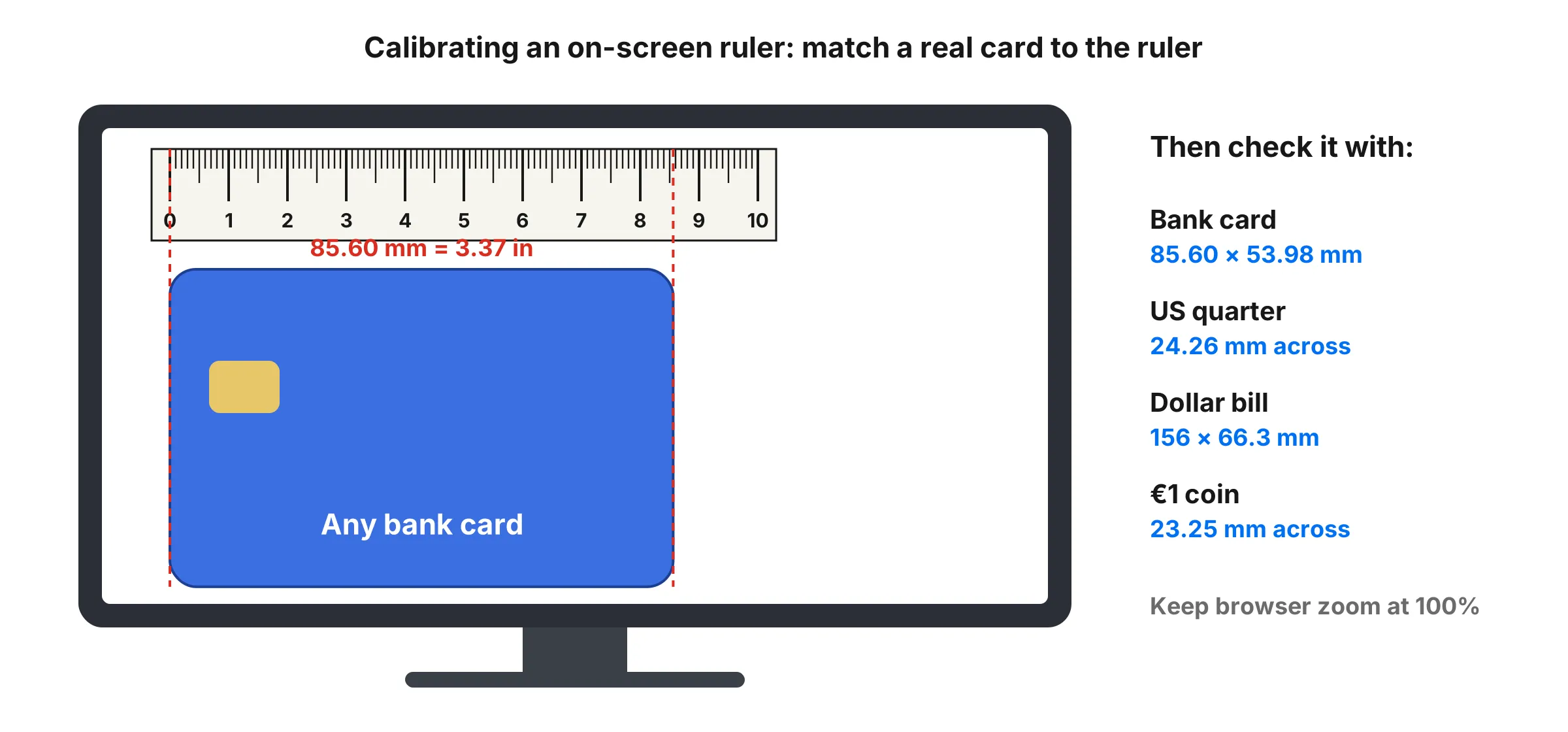
- Open the online ruler and tap Calibrate.
- Hold your card flat against the screen, with one corner on the corner of the on-screen outline.
- Drag the slider until the outline matches the card’s edges exactly.
- Tap Apply Calibration.
Why this method is the most accurate: the card is long, and its edges are crisp. If you match the long edge to within half a millimeter, that’s an error of about 0.6% over 85.6 mm. It’s hard to do better by eye, and it’s far better than any automatic method.
Two tips make a real difference. First, look straight at the screen while you match the edges. Viewing from an angle makes the card look slightly shorter or longer than it is. Second, press the card flat against the glass. Holding it even a centimeter away from the screen makes it look bigger.
2. Pick your device
The ruler can detect about 130 popular phones, tablets and laptops and load their known pixel density. This is quick and accurate to about 1%, which is fine for most everyday measuring.
The catch is that it depends on recognizing your exact model and assumes your display settings are at their defaults. If you’ve changed the display size on your phone, or your laptop isn’t in the list, the result can be off. When in doubt, use the card method.
3. Enter your screen diagonal
If you know your screen’s size and resolution, the ruler can work out its pixel density:
PPI = √(width² + height²) ÷ diagonal in inches
Worked example: a 15.6-inch laptop with a 1920 × 1080 screen.
- Square both numbers: 1920² = 3,686,400 and 1080² = 1,166,400.
- Add them and take the square root: √4,852,800 ≈ 2,203 pixels along the diagonal.
- Divide by the diagonal: 2,203 ÷ 15.6 ≈ 141 PPI.
Use your screen’s native resolution, not a scaled one. On Windows, open Settings → System → Display and look for the resolution marked “Recommended”. On a Mac, open System Settings → Displays.
This is the least accurate method because advertised screen sizes are rounded (a “15.6-inch” screen might really be 15.55 inches), and phones with rounded corners are measured as if the corners were square. Not sure of your screen size? The screen size calculator and our guide to measuring a TV or monitor can help.
No card? Use a coin or a dollar bill
Any object with a precisely known size works. Bigger is better, because a small matching error matters less on a long edge. Matching a 1 mm error on a dollar bill is a 0.6% error; the same 1 mm on a penny is over 5%.
| Object | Size | How good a reference? |
|---|---|---|
| US dollar bill | 156 × 66.3 mm (6.14 × 2.61 in) | Excellent on larger screens |
| Bank card or ID card | 85.60 × 53.98 mm (3.37 × 2.13 in) | Excellent everywhere |
| US quarter | 24.26 mm (0.955 in) across | Good |
| €1 coin | 23.25 mm across | Good |
| US penny | 19.05 mm (0.75 in) across | OK, small |
A few things to watch for with coins: old coins can be worn at the rim, and coins are round, so it’s easy to measure slightly off-center. Lay the coin flat and match the widest point. Paper money can be creased or slightly trimmed, so use a crisp bill if you can.
You can see each of these at real size on the actual size page, and the full list of coin measurements is in our US coin sizes guide.
Calibrating on different devices
iPhone and Android phones
Phones are where calibration matters most, because their pixel density is so high. Open the phone ruler, let it detect your model, then calibrate with a card. Make sure page zoom is off: on iPhone, check the aA menu in Safari and Settings → Display & Brightness → Display Zoom; on Android, a changed Display size (or Screen zoom on Samsung) affects the scale, but card calibration corrects for it. For more on measuring with a phone, see our guide on how to measure inches on your phone.
Windows laptops and monitors
Windows scaling (125%, 150% and so on) changes how big everything appears, so calibrate after you’ve set the scaling you normally use. If you change the scaling or resolution later, calibrate again.
Mac
Macs often run “scaled” resolutions, especially on Retina screens, so the device method may not match your settings. The card method works regardless.
Two or more monitors
Each monitor has its own pixel density. If you drag the browser window from a laptop screen to an external monitor, the ruler will be wrong on the new one. Calibrate on the monitor you’ll actually measure on.
iPad and tablets
Tablets make excellent rulers because their screens are long, often 8 to 11 inches. Calibrate with a card the same way as on a phone.
How to check your calibration
After calibrating, hold a known object against the ruler and read it:
- A bank card should read 85.6 mm (3 3/8 in) on its long side.
- A US quarter should read just under 1 inch (24.26 mm).
- A sheet of US Letter paper is 8.5 inches wide, if your screen is big enough.
The two-object test: if you calibrated with a card, check with a coin, and the other way round. If both read correctly, the calibration is solid. If a reading is off by more than about 1 mm, calibrate again with the card method. For readings in fractions of an inch, our guide on how to read a ruler explains what each line means.
Things that quietly break calibration
- Browser zoom. Zooming the page scales the ruler too. Press Ctrl + 0 (Cmd + 0 on Mac) to reset to 100%. On a phone, pinch back out or reload the page.
- Switching monitors. Moving the browser to a second screen with a different size changes the pixel density. Recalibrate on each monitor.
- Changing display scaling or resolution. This changes how many pixels make up an inch, so the old calibration no longer fits.
- Private windows or cleared browser data. The calibration is saved in your browser. Private windows and clearing site data forget it.
- Screen protectors and thick bezels don’t change the calibration, but they can make it harder to line an object up with the screen edge. Always measure from the ruler’s 0 line, not from the edge of the glass.
How accurate is “accurate enough”?
It helps to put ±0.5% in perspective. Most rulers, plastic or on screen, are marked to the nearest millimeter or 1/16 inch (about 1.6 mm), and that limits how precisely you can read them by eye. A calibrated screen ruler is off by about 0.5 mm over 10 cm, which is smaller than the gap between two millimeter marks.
That’s more than accurate enough for:
- screws, bolts, washers and nails
- rings, bracelets and other jewelry
- coins, cards, batteries and cables
- labels, stamps, photos and small prints
- checking an item’s size against a product listing
It’s not the right tool for machining, engineering tolerances or anything where a fraction of a millimeter matters. For that, use calipers.
When to use a screen ruler, and when not to
A calibrated screen ruler is ideal for small, flat things you can lay on or against the screen. It’s less useful for anything longer than the screen, anything curved or soft, or anything you can’t safely put near the glass.
For longer objects, a printable ruler is the next best thing. Print it at 100% scale (“Actual size”, with “Fit to page” turned off) and check one inch against a card before you trust it, because many printers quietly shrink pages to fit the margins.
No ruler and no printer? Our guide on how to measure without a ruler covers eight everyday objects you can use instead.
The bottom line
An online ruler is only as good as its calibration. Spend thirty seconds matching a bank card on each screen you use, check it with a coin, and keep the page at 100% zoom. Do that, and the ruler on your screen is as reliable as the one in your drawer.
Frequently asked questions
Are online rulers accurate?
Only after calibration. A browser does not know how big your screen physically is, so an uncalibrated online ruler can be anywhere from a few percent to almost 40% off. Calibrated with a bank card, a good online ruler is within about ±0.5%, which is roughly 0.5 mm over 10 cm.
What is the easiest way to calibrate an online ruler?
Hold any bank card, credit card, debit card or ID card against the screen and resize the on-screen card until it matches. These cards are all 85.60 × 53.98 mm worldwide, so they make a reliable reference.
Can I calibrate without a card?
Yes. Use a US quarter (24.26 mm across), a dollar bill (156 × 66.3 mm) or a €1 coin (23.25 mm). A larger object gives a more accurate result, so a dollar bill beats a coin.
Why is the ruler on my phone much smaller than a real ruler?
Phones pack far more pixels into each inch than computer screens, and browsers don't correct for that. On a typical phone, an uncalibrated 'inch' comes out at only about 0.6 real inches. Calibrating with a card fixes it.
Why did my ruler change size after I zoomed the page?
Browser zoom scales everything on the page, including the ruler. Reset the zoom to 100% (Ctrl + 0 on Windows, Cmd + 0 on Mac) before you calibrate and before you measure.
Do I need to calibrate again on another device?
Yes. Every phone, laptop and monitor has a different pixel density, and the calibration is saved per browser on each device. Recalibrate whenever you switch screens or move the browser window to a different monitor.
Is a printable ruler more accurate than an on-screen one?
It can be, if it prints at exactly 100% scale. Many printers shrink pages slightly to fit the margins, so always print at 'Actual size' and check one inch against a card. For small objects, a calibrated screen ruler is just as good and needs no printer.
More measuring guides
- How to Read a Ruler (Inches and Centimeters)
- How to Read a Tape Measure
- How to Measure Without a Ruler
- Fraction to Decimal Inch Chart (with Millimeters)
- How to Measure Your Ring Size at Home
- Paper Sizes Chart (Inches and Millimeters)
- US Coin Sizes: Diameter, Thickness and Weight
- How to Use a Protractor
- How to Measure Your Height at Home
- How to Measure a TV or Monitor Screen Size
- How to Measure Your Foot for Shoe Size
- How to Measure Your Wrist for a Bracelet or Watch
- Picture Frame Sizes: Standard US and Metric Chart
- Lumber Sizes: Actual vs Nominal Dimensions Chart
- Mattress and Bed Size Chart: US Dimensions in Inches and cm
- Ring Size Chart: US, UK, EU and Japan Conversion
- Necklace Length Chart: How Each Chain Length Fits
- Free Printable Ruler Worksheets with Answer Keys
- Screw and Bolt Size Chart: US and Metric
- Drill Bit Size Chart: Inch, Metric and Tap Drill Sizes
- Nail Size Chart: Penny Sizes Explained
- Envelope Sizes Chart: US and International
- Business Card Size: Standard Dimensions by Country
- Poster Sizes Chart: US and International
- Hat Size Chart: How to Find Your Hat Size
- Pandora Ring Size Chart: Pandora to US and UK Sizes
- Cartier Ring Size Chart: Cartier to US and UK Sizes
- How to Measure for Curtains in 5 Steps
- How High to Hang Curtains (and Why Higher Looks Better)
- Curtain Size Chart: Standard Lengths and Widths
- Wrench Size Chart: SAE vs Metric, Sockets and Allen Keys
- Wire Gauge Chart: AWG Sizes in Inches and mm
- Pipe Size Chart: Nominal vs Actual Sizes
- Sandpaper Grit Chart: Which Grit for Which Job
- Thread Pitch Chart: UNC, UNF and Metric Threads
- Sheet Metal Gauge Chart: Thickness in Inches and mm
- Extension Cord Gauge Chart: Length, Amps and AWG
- Rebar Size Chart: US Bar Sizes, Diameter and Weight
- Plywood and Drywall Thickness: Nominal vs Actual
- Tap Drill Size Chart: UNC, UNF and Metric
- Number and Letter Drill Size Chart
- Bolt Torque Chart: SAE Grades and Metric Classes
- Washer Size Chart: SAE, USS and Metric Washers
- How to Show the Ruler in Word
- How to Show the Ruler in Google Docs
- How to Show the Ruler in PowerPoint
- How to Measure Inches on Your Phone
- How Big Is 1 Inch? Everyday Objects That Are an Inch
- How Big Is 1 cm and 1 mm? Real-Life Comparisons
- How to Measure PD (Pupillary Distance) for Glasses
- Ear Gauge Size Chart: Gauge to mm and Inches
- Bra Size Chart and How to Measure for a Bra