How to Show the Ruler in PowerPoint
View > Ruler in Normal view. Plus why the ruler starts at 0 in the middle of the slide, how to change units, and what to use in PowerPoint for the web.
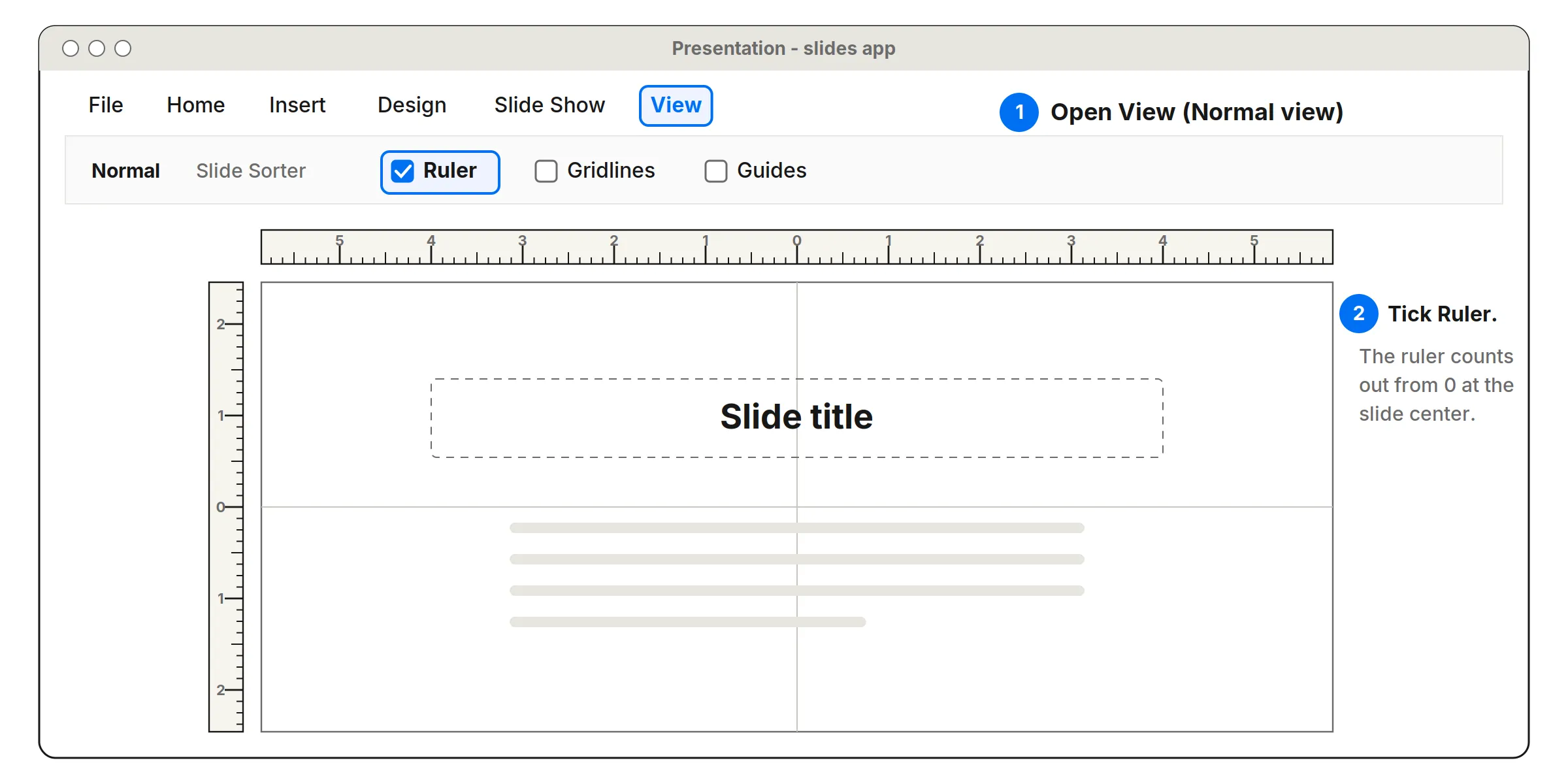
To show the ruler in PowerPoint, open the View tab and tick Ruler in the Show group. If the box is grayed out, you’re not in Normal view. Click Normal on the same tab first.
Show the ruler in PowerPoint for Windows and Mac
- Open your presentation.
- Click the View tab.
- Make sure Normal view is selected.
- In the Show group, tick Ruler.
A ruler appears above the slide and another down the left side. Clear the box to hide them.
The ruler isn’t available in every view. In Slide Sorter, for example, the option is grayed out.
Why the ruler starts at 0 in the middle
PowerPoint’s rulers count outward from 0 at the center of the slide, so on a widescreen slide the top ruler runs from about 6.7 inches on the left, through 0, to 6.7 inches on the right. That makes it easy to place two objects the same distance either side of the middle.
When you click inside a text box, the top ruler changes. It then measures that box from its left edge and shows its indents and tab stops, just like Word.
PowerPoint for the web has no ruler
If you’re using PowerPoint in a browser, you won’t find a ruler. Microsoft says rulers and gridlines are only available in desktop PowerPoint. Instead, PowerPoint for the web shows smart guides, the dashed lines that pop up as you drag an object, to help you line things up.
Other ways to place things precisely in the web version:
- Align and distribute: select several objects and use the Arrange options to align their edges or centers, or space them evenly.
- Exact sizes: select a shape or picture and type the height and width on the Shape or Picture tab instead of dragging.
- Open the desktop app: if you have desktop PowerPoint, open the file there for rulers, gridlines and guides.
Gridlines and guides (desktop)
Next to Ruler on the View tab are two more layout helpers:
- Gridlines draw a fixed grid over the slide. On Windows, Shift+F9 toggles them.
- Guides are draggable lines for lining things up. They always start through the center of the slide. On Windows, Alt+F9 toggles them.
Change the ruler units
PowerPoint for Windows takes its units from your computer’s region settings, not from PowerPoint itself:
- Close PowerPoint.
- Open Windows Settings, search for measure, and choose Change the way measurements are displayed.
- In the Region dialog, select Additional settings.
- On the Numbers tab, set Measurement system to Metric (centimeters) or U.S. (inches).
- Select OK twice and reopen PowerPoint.
Turn off just the vertical ruler
Go to File > Options > Advanced, scroll to Display, and clear Show vertical ruler.
Measuring real objects
Like Word, PowerPoint’s ruler measures the slide, and it changes size with zoom, so it won’t match a real ruler held against the screen. To measure something physical on your display, use a ruler calibrated to your screen, such as our inch ruler or cm ruler. To work out how big an image will print, try the pixels to inches converter.
Frequently asked questions
How do I show the ruler in PowerPoint?
Go to the View tab and, in the Show group, tick Ruler. It's the same in PowerPoint for Windows and Mac. If the box is grayed out, switch to Normal view first.
Does PowerPoint for the web have a ruler?
No. Microsoft says rulers and gridlines are only available in desktop PowerPoint. PowerPoint for the web shows smart guides instead, which appear automatically as you move objects to help you line them up.
Why does the PowerPoint ruler start at 0 in the middle?
With nothing selected, the ruler measures from the center of the slide, so you can place objects the same distance either side of the middle. When you click into a text box, the ruler changes to measure that box from its left edge.
How do I change PowerPoint's ruler to centimeters?
PowerPoint for Windows uses your computer's measurement system. Close PowerPoint, open Windows Settings, search for measurement and choose Change the way measurements are displayed, then under Additional settings set Measurement system to Metric and restart PowerPoint.
How do I turn off the vertical ruler in PowerPoint?
Go to File > Options > Advanced, scroll to Display, and clear Show vertical ruler. The horizontal ruler stays on.
More measuring guides
- How to Read a Ruler (Inches and Centimeters)
- How to Read a Tape Measure
- How to Measure Without a Ruler
- Fraction to Decimal Inch Chart (with Millimeters)
- How to Measure Your Ring Size at Home
- Paper Sizes Chart (Inches and Millimeters)
- US Coin Sizes: Diameter, Thickness and Weight
- How to Use a Protractor
- How to Measure Your Height at Home
- How to Measure a TV or Monitor Screen Size
- How to Measure Your Foot for Shoe Size
- How to Measure Your Wrist for a Bracelet or Watch
- Picture Frame Sizes: Standard US and Metric Chart
- Lumber Sizes: Actual vs Nominal Dimensions Chart
- Mattress and Bed Size Chart: US Dimensions in Inches and cm
- Ring Size Chart: US, UK, EU and Japan Conversion
- Necklace Length Chart: How Each Chain Length Fits
- Free Printable Ruler Worksheets with Answer Keys
- Screw and Bolt Size Chart: US and Metric
- Drill Bit Size Chart: Inch, Metric and Tap Drill Sizes
- Nail Size Chart: Penny Sizes Explained
- Envelope Sizes Chart: US and International
- Business Card Size: Standard Dimensions by Country
- Poster Sizes Chart: US and International
- Hat Size Chart: How to Find Your Hat Size
- Pandora Ring Size Chart: Pandora to US and UK Sizes
- Cartier Ring Size Chart: Cartier to US and UK Sizes
- How to Measure for Curtains in 5 Steps
- How High to Hang Curtains (and Why Higher Looks Better)
- Curtain Size Chart: Standard Lengths and Widths
- Wrench Size Chart: SAE vs Metric, Sockets and Allen Keys
- Wire Gauge Chart: AWG Sizes in Inches and mm
- Pipe Size Chart: Nominal vs Actual Sizes
- Sandpaper Grit Chart: Which Grit for Which Job
- Thread Pitch Chart: UNC, UNF and Metric Threads
- Sheet Metal Gauge Chart: Thickness in Inches and mm
- Extension Cord Gauge Chart: Length, Amps and AWG
- Rebar Size Chart: US Bar Sizes, Diameter and Weight
- Plywood and Drywall Thickness: Nominal vs Actual
- Tap Drill Size Chart: UNC, UNF and Metric
- Number and Letter Drill Size Chart
- Bolt Torque Chart: SAE Grades and Metric Classes
- Washer Size Chart: SAE, USS and Metric Washers
- How to Show the Ruler in Word
- How to Show the Ruler in Google Docs
- Is an Online Ruler Accurate? How to Calibrate It
- How to Measure Inches on Your Phone
- How Big Is 1 Inch? Everyday Objects That Are an Inch
- How Big Is 1 cm and 1 mm? Real-Life Comparisons
- How to Measure PD (Pupillary Distance) for Glasses
- Ear Gauge Size Chart: Gauge to mm and Inches
- Bra Size Chart and How to Measure for a Bra