How to Measure Inches on Your Phone
The three ways to measure in inches with an iPhone or Android phone, which one to use for a screw or a whole room, how accurate each one really is, and how to avoid the mistakes that throw readings off.
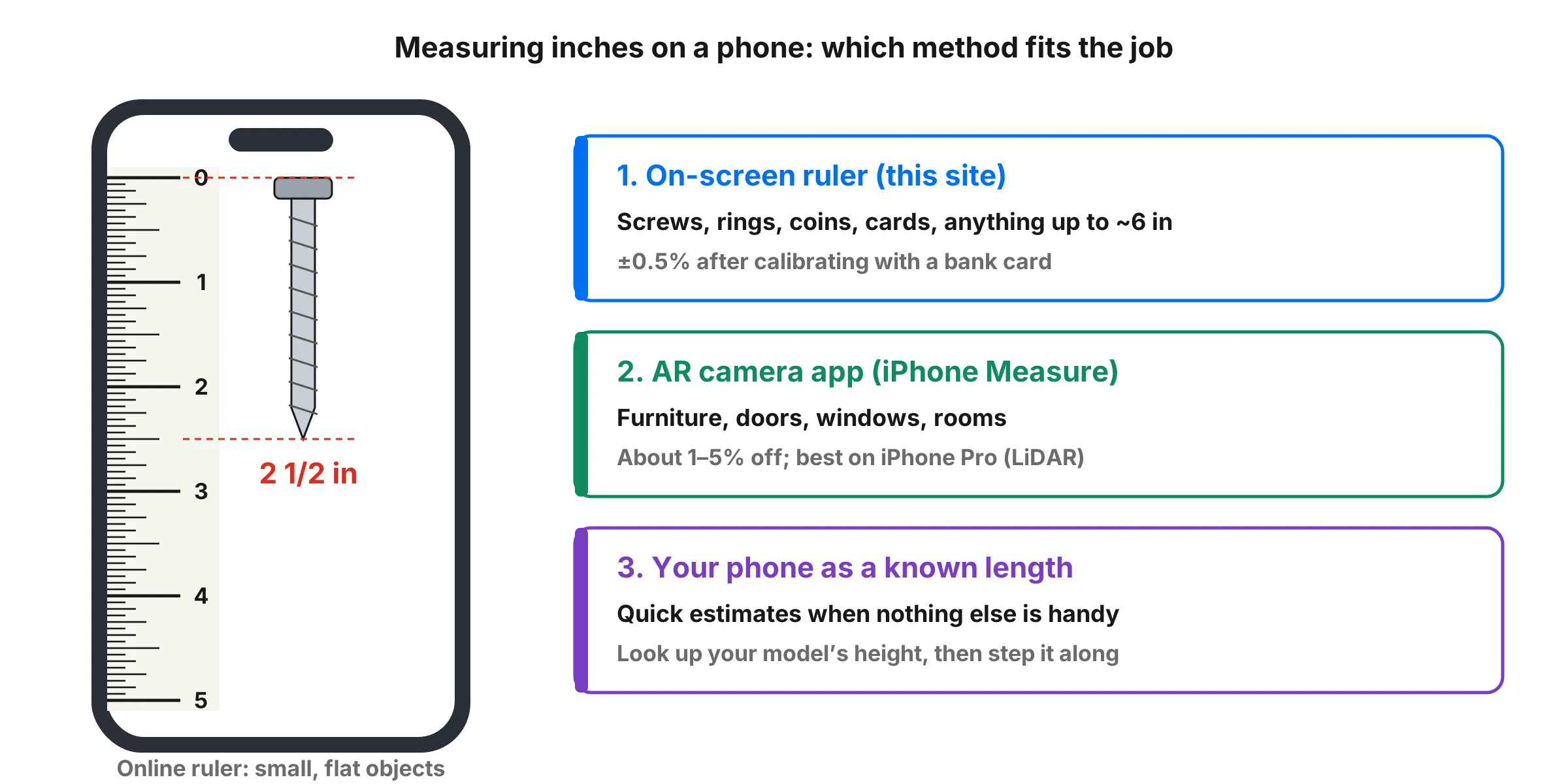
Your phone can measure inches in three quite different ways, and most people only know about one of them. The trick is matching the method to the job. A camera app that is great for measuring a sofa is surprisingly bad at measuring a screw, and an on-screen ruler that is accurate to a fraction of a millimeter can’t measure a doorway at all.
Quick answer: For anything small and flat (a screw, a ring, a coin, a card), open an online phone ruler in your browser and calibrate it with a bank card. For furniture, doors and rooms, use the Measure app on iPhone or an AR measuring app on Android. If you have nothing else, your phone is a measuring stick of known length.
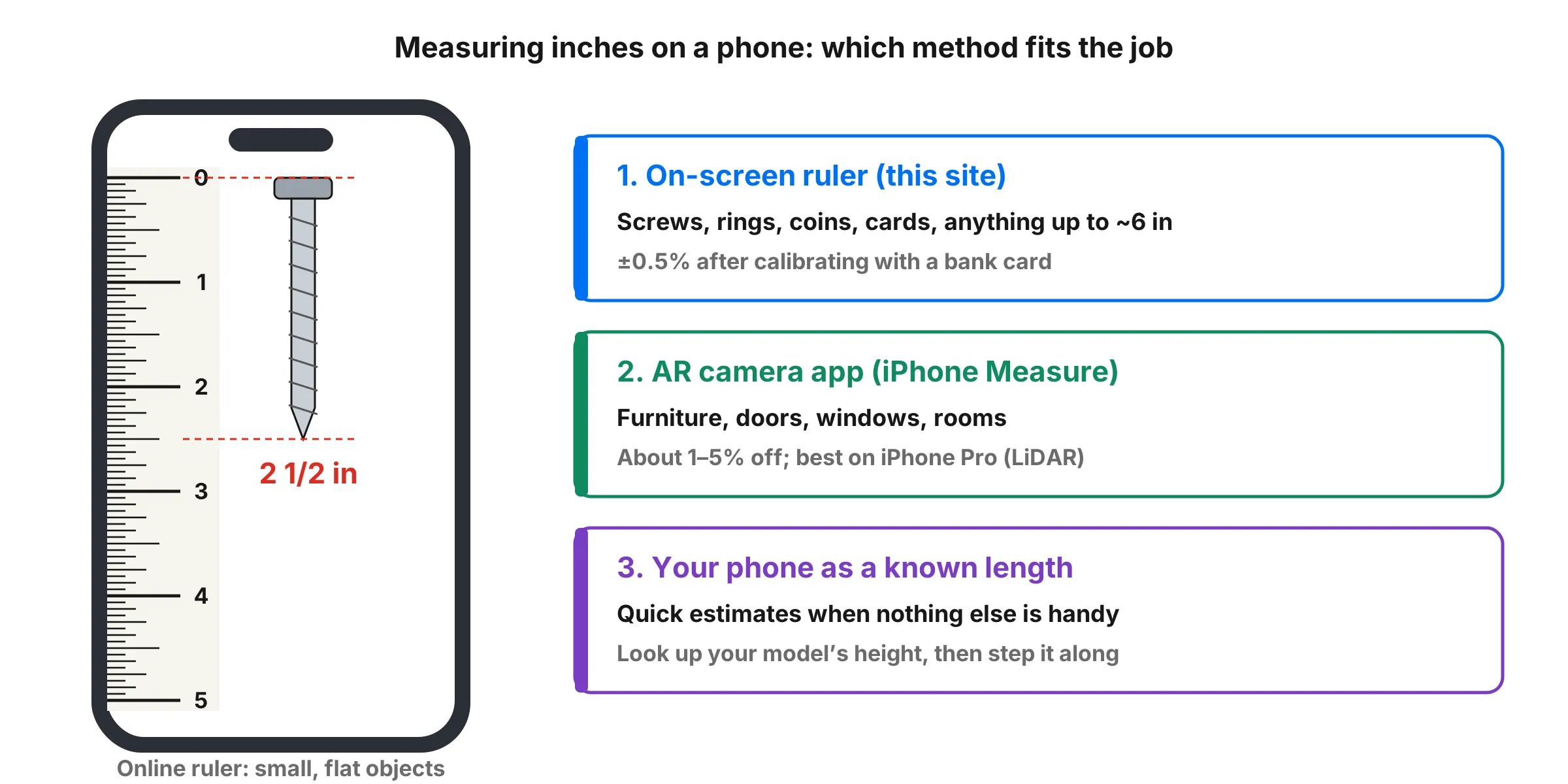
Which method should you use?
| You want to measure | Best method | What to expect |
|---|---|---|
| Screws, bolts, nails, washers | On-screen ruler | Readings to 1/16 in |
| Rings, earrings, jewelry | On-screen ruler | Readings to 1/16 in or 1 mm |
| Coins, cards, batteries, cables | On-screen ruler | ±0.5% once calibrated |
| Photos, labels, small paper | On-screen ruler or printable ruler | Good up to about 6 in |
| Furniture, appliances, boxes | AR camera app | A few percent, about 1 in over 3 ft |
| Doors, windows, rooms | AR camera app, then a tape measure | Good for planning, not ordering |
| A quick rough size | Phone as a known length | ±5–10% |
The short version: the closer and smaller the object, the more you want a ruler on the screen. The farther and bigger it is, the more you want the camera.
Method 1: Use an on-screen ruler (small objects)
An online ruler draws real inches on your screen, so you can lay an object on the glass and read it like a plastic ruler. It runs in Safari, Chrome, Samsung Internet or any other browser. There is nothing to install and nothing to sign up for.
Step by step
- Open the phone ruler in your phone’s browser. A ruler appears down the edge of the screen.
- Let it detect your phone. It recognizes about 130 popular models and loads their exact pixel density.
- Calibrate for the best accuracy. Tap Calibrate, hold any bank card, debit card or ID card against the screen, and drag until the outline matches the card. Every one of these cards is 3.37 × 2.13 inches, so it makes a perfect reference. (Our guide on how accurate online rulers are explains why this matters so much on phones.)
- Switch to inches. Tap in in the toolbar. Each inch is split into sixteenths, like a standard US ruler.
- Measure. Lay the object on the screen or hold it against the edge, line one end up with the 0 line, and read where the other end falls.
Reading the result
The long numbered lines are whole inches. The next longest line is the half inch, then quarters, then eighths, and the shortest lines are sixteenths. So if a screw ends three short lines past the 2, it is 2 3/16 inches. If you’re rusty on fractions, our guide on how to read a ruler walks through every line with examples, and the fraction to decimal inch chart converts readings like 3/16 into 0.1875.
Tips that make a real difference
- Keep the page at 100%. If you pinch-zoom the page, the ruler stretches with it and every reading is wrong. Pinch back out or reload the page.
- Use fullscreen. Hiding the browser bar gives you a little more length, which matters on smaller phones.
- Look straight down. If you look at the screen at an angle, the object’s edge appears to shift by a line or two. This is called parallax, and it catches everyone.
- Lay the phone flat on a table. It’s much easier to hold an object still against a phone that isn’t moving.
- Put paper between metal and glass. A sheet of printer paper over the screen protects it from screws, keys and sharp parts and barely affects the reading.
- Measure twice. If the two readings don’t match, measure a third time and go with the two that agree.
How long an object can you measure?
The ruler can only be as long as your screen. Here is roughly what you get:
| Screen size (diagonal) | Usable ruler length |
|---|---|
| 5.4 in (small phone) | about 4.9 in |
| 6.1 in (standard phone) | about 5.5 in |
| 6.7 in (large phone) | about 6.1 in |
| 8.3 in (small tablet) | about 7 in |
| 11 in (tablet) | about 9.5 in |
For something longer, use the mark and slide method. Line the object up with 0, put a small pencil mark (or the edge of a sticky note) where the screen ends, slide the phone down so 0 sits exactly on the mark, and read again. Add the readings together. It works well for a few steps, but small errors add up, so for anything over about a foot a printable ruler or a tape measure is the better tool.
Method 2: Use an AR camera app (furniture and rooms)
Augmented reality (AR) apps use the camera and the phone’s motion sensors to work out how far apart two points are in the room. That means they can measure things far bigger than the screen, from a coffee table to a whole wall.
iPhone: the Measure app
Every iPhone and iPad comes with Apple’s free Measure app. If you can’t find it, swipe down on the home screen and search for “Measure”.
- Open Measure and slowly move the phone around. The app asks you to do this so it can map the surfaces in front of you.
- Point the white dot at the start of what you want to measure and tap the + button.
- Move the phone so the dot sits on the end point, then tap + again.
- Read the length on the line. Tap the number to see it in other units or to copy it.
- Take a photo with the shutter button if you want to keep the measurement, or tap the list icon to see your recent ones.
To get inches instead of centimeters, open the Settings app, tap Measure (under Apps on newer versions of iOS) and set Measure Units to Imperial.
If the object is a rectangle, such as a picture frame, a tabletop or a box lid, the app often detects it on its own and draws a box with the width, height and area. Tap + to accept it.
Extra features on iPhone Pro models (LiDAR)
iPhone 12 Pro and later Pro and Pro Max models, and iPad Pro models, have a LiDAR scanner next to the camera. It measures depth directly instead of estimating it from the camera image, and it unlocks a few extras:
- Ruler view. Move closer to a measurement line and inch marks appear along it, like a real tape measure.
- Edge guides. Yellow guide lines snap to the straight edges of furniture and doorways so your points land in the right place.
- Person height. Point the camera at a person standing in frame and their height appears automatically. (For a more accurate method, see our guide on how to measure your height at home.)
- Better accuracy, especially in dim rooms and on plain surfaces.
Android phones
Here Android is the odd one out: most Android phones don’t come with a measuring app at all. Google’s own Measure app was retired years ago, and in September 2026 Samsung announced it is ending its Quick Measure app on December 31, 2026. Existing copies may keep working for a while, but they won’t get updates.
That leaves two good options:
- For small objects, open the phone ruler in Chrome. It works the same on every Android phone.
- For larger objects, install an AR measuring app from the Google Play Store. Search for “AR ruler” or “measure app”, and pick one with plenty of recent reviews. These apps rely on Google’s ARCore, so check that your phone is on Google’s list of ARCore supported devices.
How accurate are AR measuring apps?
Good enough to answer “will this couch fit through the door?” and not good enough for cutting wood or ordering blinds. Independent tests of the iPhone Measure app usually find errors of a few percent even on LiDAR phones, which is about an inch over three feet, and more on phones without LiDAR. To get the best results:
- Use good, even light. Dim rooms make the camera guess.
- Measure things with clear edges and corners. Plain white walls, glass, mirrors and shiny surfaces confuse the camera.
- Get close. Stand within a few feet of what you’re measuring and keep the phone steady.
- Move slowly and give the app a second to settle before you tap.
- Measure twice and average the results.
For anything you will cut, drill or order to size, treat the AR number as a first estimate and confirm it with a real tape measure. Our guide on how to read a tape measure explains the markings, including the red stud marks every 16 inches.
Method 3: Use your phone as a known length
No app, no signal, no card? Your phone is still a measuring stick. Every model has a published height and width, so you can step it along an object and count. Search for your exact model’s “dimensions” or “tech specs” on the maker’s website. A few popular models:
| Phone | Height × width |
|---|---|
| iPhone 16 | 5.81 × 2.82 in (147.6 × 71.6 mm) |
| iPhone 16 Pro Max | 6.42 × 3.06 in (163.0 × 77.6 mm) |
| Samsung Galaxy S25 | 5.78 × 2.78 in (146.9 × 70.5 mm) |
| Samsung Galaxy S25 Ultra | 6.41 × 3.06 in (162.8 × 77.6 mm) |
| Google Pixel 9 | 6.02 × 2.83 in (152.8 × 72.0 mm) |
A case adds a little to every side, usually 1–2 mm, so either take the case off or measure your phone in its case once and remember that number.
Example: you want to know if a shelf is wide enough for a printer that’s 18 inches wide. With an iPhone 16 (about 5.8 inches tall), lay it end to end along the shelf. Three phone lengths is about 17.4 inches. If there’s still a bit of shelf left after the third step, you probably have room. If it’s close, measure properly before you buy.
This is an estimate, not a measurement, but it’s surprisingly handy. Our guide on how to measure without a ruler lists other everyday objects with known sizes, like a dollar bill (6.14 inches) and a sheet of Letter paper (8.5 × 11 inches).
Real-world examples
Measuring a screw for a replacement
Lay the screw on the on-screen ruler. How you measure the length depends on the head:
- Flat (countersunk) heads sit flush with the surface, so measure the whole screw, from the top of the head to the tip.
- Pan, round and hex heads sit on top of the surface, so measure from just under the head to the tip.
Then measure the thickness of the threads. For help working out the size, such as #8 or 1/4 inch, use the screw size checker or our screw and bolt size chart.
Checking a ring size
Lay a ring you already own flat on the screen and measure the inside diameter, not the outside. Then look it up in the ring size chart, or use the ring size finder, which lets you match the ring to circles on screen.
Measuring furniture before you buy
Use the Measure app to check the width of the doorway, the hallway and the space where the furniture will go. Then compare those numbers with the product listing’s dimensions, leaving at least an inch of room on each side. Because AR apps can be off by an inch or so, confirm with a tape measure if the fit is tight.
Checking a battery, photo or card
An AA battery is about 1.99 inches long, a standard photo print is 4 × 6 inches, and a credit card is 3.37 inches wide. Measuring a known object like this is also a quick way to check that your on-screen ruler is set up correctly.
Common mistakes (and how to fix them)
| Problem | Why it happens | Fix |
|---|---|---|
| The ruler is too big or too small | The page is zoomed, or the phone wasn’t detected | Reset the zoom, then calibrate with a bank card |
| Readings changed since yesterday | You changed the display size setting or cleared browser data | Calibrate again |
| iPhone ruler is scaled oddly | Display Zoom or page zoom is on | Check Settings → Display & Brightness → Display Zoom, and the aA menu in Safari |
| Android ruler is scaled oddly | Display size or “Screen zoom” (Samsung) was changed | Calibrate with a card, which corrects for it |
| Measure app jumps around | Low light, plain surfaces or moving too fast | Add light, aim at edges and corners, move slowly |
| Measure app shows centimeters | Units are set to metric | Settings → Measure → Measure Units → Imperial |
Checking that your phone is measuring correctly
Before you trust any phone measurement, test it on something with a known size:
- A US quarter is 0.955 in across, just under 1 inch.
- A bank card is 3.37 × 2.13 in.
- A dollar bill is 6.14 in long.
- A sheet of Letter paper is 8.5 × 11 in, which is good for testing an AR app.
You can compare coins and cards with the actual size viewer, which shows them at real size on your screen. If a reading is off, recalibrate the on-screen ruler with a bank card, or close and reopen the AR app and scan the room again.
Converting inches to centimeters
Plenty of product listings and instructions use centimeters or millimeters, so it helps to switch between them. One inch is exactly 2.54 cm (25.4 mm). Multiply inches by 2.54 to get centimeters: a 2 1/2 inch screw is 2.5 × 2.54 = 6.35 cm. Going the other way, divide by 2.54.
The phone ruler has a cm button too, so you can read the same object in both units without converting. For quick sums, use the inches to cm converter.
The bottom line
Your phone is a genuinely useful measuring tool once you use the right method. Use an on-screen ruler for anything small enough to lay on the screen, calibrated once with a bank card. Use an AR camera app to plan around furniture and rooms. And when you need a real number for cutting or ordering, finish with a tape measure. Between them, you’ll rarely need to hunt for a ruler again.
Frequently asked questions
Can my phone measure inches?
Yes. For small objects, open an online ruler in your phone's browser and set it to inches. For bigger things like furniture, use an AR camera app such as the Measure app that comes with every iPhone. Neither needs a real ruler.
Does Android have a built-in ruler?
Most Android phones don't. Google's Measure app was retired, and Samsung is ending its Quick Measure app at the end of 2026. An online ruler works in Chrome on any Android phone, and AR measuring apps are available in the Play Store.
How accurate is the iPhone Measure app?
It is fine for estimates but not for precise work. Real-world tests typically find errors of a few percent, which is about 1 inch over 3 feet. iPhone Pro models with a LiDAR sensor are noticeably more accurate than other iPhones.
How do I switch the iPhone Measure app to inches?
Open the Settings app, scroll down and tap Measure (on newer iOS versions it is under Apps), then set Measure Units to Imperial.
How many inches can a phone screen measure at once?
Most phones show about 5 to 6 inches along the long edge of the screen. To measure something longer, mark where the screen ends, slide the phone along and add the readings together.
Why is the ruler on my phone the wrong size?
Usually because the page is zoomed, or because the phone's display size setting has been changed, so the ruler is scaled. Reset the zoom, then calibrate with a bank card, which measures your screen directly and fixes the size on any phone.
Can I measure inches on an iPad or tablet?
Yes, and a tablet is even better for small objects because the screen is longer, usually 8 to 11 inches. The Measure app also runs on iPad, and iPad Pro models have the same LiDAR sensor as the Pro iPhones.
More measuring guides
- How to Read a Ruler (Inches and Centimeters)
- How to Read a Tape Measure
- How to Measure Without a Ruler
- Fraction to Decimal Inch Chart (with Millimeters)
- How to Measure Your Ring Size at Home
- Paper Sizes Chart (Inches and Millimeters)
- US Coin Sizes: Diameter, Thickness and Weight
- How to Use a Protractor
- How to Measure Your Height at Home
- How to Measure a TV or Monitor Screen Size
- How to Measure Your Foot for Shoe Size
- How to Measure Your Wrist for a Bracelet or Watch
- Picture Frame Sizes: Standard US and Metric Chart
- Lumber Sizes: Actual vs Nominal Dimensions Chart
- Mattress and Bed Size Chart: US Dimensions in Inches and cm
- Ring Size Chart: US, UK, EU and Japan Conversion
- Necklace Length Chart: How Each Chain Length Fits
- Free Printable Ruler Worksheets with Answer Keys
- Screw and Bolt Size Chart: US and Metric
- Drill Bit Size Chart: Inch, Metric and Tap Drill Sizes
- Nail Size Chart: Penny Sizes Explained
- Envelope Sizes Chart: US and International
- Business Card Size: Standard Dimensions by Country
- Poster Sizes Chart: US and International
- Hat Size Chart: How to Find Your Hat Size
- Pandora Ring Size Chart: Pandora to US and UK Sizes
- Cartier Ring Size Chart: Cartier to US and UK Sizes
- How to Measure for Curtains in 5 Steps
- How High to Hang Curtains (and Why Higher Looks Better)
- Curtain Size Chart: Standard Lengths and Widths
- Wrench Size Chart: SAE vs Metric, Sockets and Allen Keys
- Wire Gauge Chart: AWG Sizes in Inches and mm
- Pipe Size Chart: Nominal vs Actual Sizes
- Sandpaper Grit Chart: Which Grit for Which Job
- Thread Pitch Chart: UNC, UNF and Metric Threads
- Sheet Metal Gauge Chart: Thickness in Inches and mm
- Extension Cord Gauge Chart: Length, Amps and AWG
- Rebar Size Chart: US Bar Sizes, Diameter and Weight
- Plywood and Drywall Thickness: Nominal vs Actual
- Tap Drill Size Chart: UNC, UNF and Metric
- Number and Letter Drill Size Chart
- Bolt Torque Chart: SAE Grades and Metric Classes
- Washer Size Chart: SAE, USS and Metric Washers
- How to Show the Ruler in Word
- How to Show the Ruler in Google Docs
- How to Show the Ruler in PowerPoint
- Is an Online Ruler Accurate? How to Calibrate It
- How Big Is 1 Inch? Everyday Objects That Are an Inch
- How Big Is 1 cm and 1 mm? Real-Life Comparisons
- How to Measure PD (Pupillary Distance) for Glasses
- Ear Gauge Size Chart: Gauge to mm and Inches
- Bra Size Chart and How to Measure for a Bra